Vector graphics are fundamentally different from raster images. Where a JPEG or PNG stores color values for individual pixels, a vector file stores mathematical descriptions of shapes, paths, and curves. This means vector images can be scaled to any size without losing quality.
### Why SVG Matters
SVG (Scalable Vector Graphics) is the web standard for vector images. Icons, logos, illustrations, and UI elements built in SVG look sharp on every screen — from a small phone to a 4K monitor.
Inkscape uses SVG as its native format, which means files created in Inkscape are immediately usable on the web without conversion.
### What Inkscape Can Do
Inkscape covers the full range of vector design tasks:
- **Logo and icon design** using bezier curves and shape tools
- **Technical diagrams** with precise measurements and grids
- **Illustrations** with gradients, patterns, and filters
- **Typography** with text on path and custom lettering
- **Web graphics** exported directly as optimized SVG or PNG
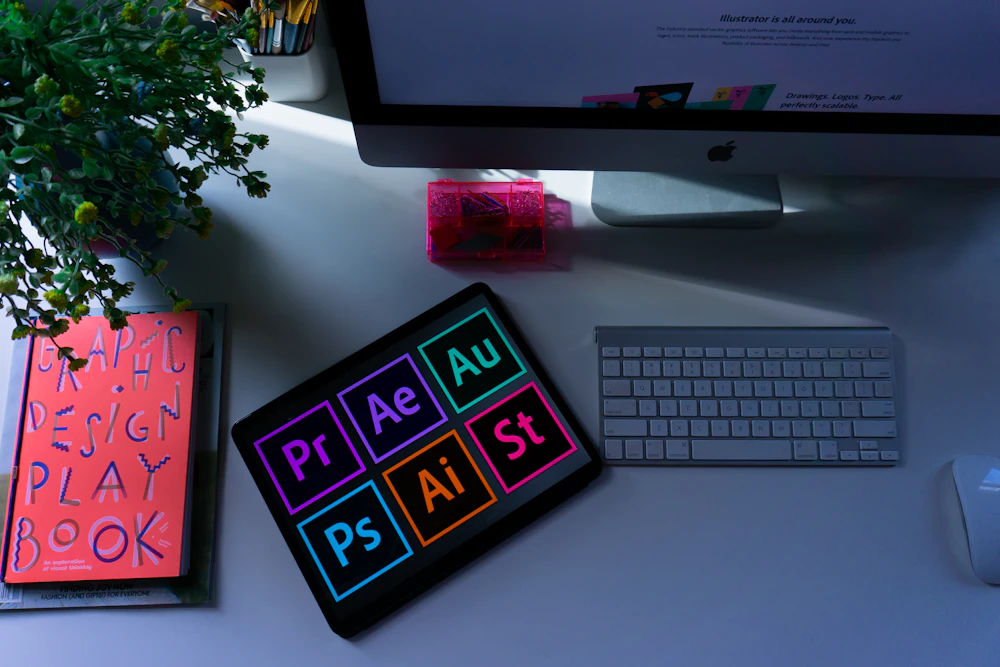
### Inkscape vs Adobe Illustrator
Illustrator has advantages in performance, cloud integration, and some advanced typography features. But for most design tasks, Inkscape is a capable free alternative.
The key difference is the ecosystem: Illustrator integrates with Adobe Creative Cloud, while Inkscape integrates with the open-source toolchain (GIMP, Scribus, Blender).
### Getting Started
The fastest way to learn Inkscape is to open an existing SVG file and explore how it is constructed. The Inkscape documentation and community tutorials are extensive and free.
**For anyone doing web design, icon work, or illustration without a budget for commercial tools, Inkscape is the obvious starting point.**

Design Tools Editor
Getting Started With Vector Graphics Using Inkscape
Feb 11, 20264 min read
Keep Reading
Explore More Stories

Discussion
0 comments
Sign in to join the discussion.
No comments yet — be the first.